
How to Find Lost Earbuds on an iPhone When They Aren’t AirPods
Find non-Apple earbuds with an iPhone: check Find My support, manufacturer app features, and nearby Bluetooth scanning, using Sony WF-1000XM5 as an example.

You can use an iPhone to look for non-Apple earbuds, but the available tools depend on the exact model. First check Apple Find My compatibility, then the manufacturer’s iPhone app, and finally a nearby Bluetooth Low Energy scanner. If you’re searching for your Sony WF-1000XM5 on an iPhone, they do not support Apple Find My. A Bluetooth scanner may help nearby, but only while the missing device has power and emits a detectable BLE signal.
Bluetooth Compatibility Is Not Find My Compatibility
Earbuds can play music and take calls on your iPhone without supporting Apple’s locating tools. Audio compatibility, manufacturer app support, and tracking support are separate features. An earbud’s appearance in Settings under Bluetooth only tells you that your iPhone knows about it. That saved entry is not a location report.
The same distinction applies to tracking advertised for Android phones. Support for Google’s finding network or Samsung’s locating services does not automatically carry over to an iPhone. Look for instructions that explicitly name iOS or Apple Find My, rather than assuming a feature works across platforms.
Check Whether Your Earbuds Support Apple Find My
Use the exact model name, not just the brand, to check compatibility:
- Read the manufacturer’s product page or support manual. Look for explicit Apple Find My support, not just a general phrase such as find your earbuds.
- Open Find My on your iPhone and check both Devices and Items. Where a supported product appears depends on its integration.
- If the product supports Find My but is missing from the app, check its setup instructions and the Apple Account used during setup. Some products require enrollment before they are lost.
- Read the locating limitations for that model. A map location, sound alert, and nearby finding are different capabilities; support for one does not promise all three.
Some non-AirPods products, including certain Beats earbuds, work with Apple Find My. Many other earbuds do not. There is no universal setting that adds unsupported Bluetooth earbuds to Apple’s finding network, and pairing them again will not create that support.
Check the Manufacturer’s iPhone App Next
Find the manufacturer’s official app in the App Store and confirm that it supports your model. An app available for iPhone might offer only sound controls, battery information, and firmware updates. Do not assume an Android locating feature exists in the iPhone version.
If the app has a locating section, establish what it actually does:
- Play a sound: This can help within hearing distance, but may require a connection and powered earbuds. Follow any warning about removing earbuds from your ears before playing an alert.
- Show a saved location: Check its timestamp and what event created it. It may show where your phone last connected, not where the earbuds are now.
- Use a finding network: Confirm that the feature is available for your model and works from your iPhone, including any setup required beforehand.
- Locate separate parts: Check whether the feature covers either earbud, both earbuds together, or the case. Do not assume every part can be located independently.
For Sony WF-1000XM5, Sony’s iPhone companion app is Sony | Sound Connect, previously called Sony | Headphones Connect. Having that app does not add Apple Find My support. Android finding instructions are not an iPhone workaround. For the model-specific checks and search steps, visit https://earbuddyapp.com/find/wf-1000xm5.
What an iPhone Bluetooth Scanner Can Do
When there is no compatible locating service, a Bluetooth Low Energy scanner gives you another nearby search option. It listens for BLE signals that your iPhone can detect. A device does not have to be connected for a scanner to detect its advertisements, but it does have to be transmitting a suitable signal.
EarBuddy can identify devices by brand and help you follow a detected signal using a direction compass, a smoothed signal-strength radar with hot/cold guidance, and haptic feedback that speeds up as you get closer. These are nearby search aids, not a remote location service or a guarantee of an exact position.
For a useful nearby scan on your iPhone:
- Turn on Bluetooth and allow the scanner’s Bluetooth permission when prompted.
- Start where you last used the earbuds, then move slowly through likely rooms or search areas.
- Look for a plausible device identification, but remember that a brand label alone may not distinguish your earbuds from another nearby device.
- Pause between movements and compare the signal trend. Walls, your body, and furniture can change readings, so avoid treating one jump as proof.
- Search physically where the signal consistently strengthens. The scanner helps narrow the area; you still need to check pockets, bags, and furniture.
EarBuddy requires a powered device emitting a detectable BLE signal. It cannot find earbuds with a dead battery. Charged earbuds may also be undetectable while asleep or enclosed in their case, and a charged case does not necessarily broadcast its own signal.
Nearby Detection Is Not Remote Tracking
A scanner cannot tell you that your earbuds are across town unless your phone is close enough to detect them. It does not enroll them in Apple Find My or receive sightings from other people’s phones. If nothing appears, that does not prove the earbuds are absent: they may be out of range, asleep, shielded, or out of power.
EarBuddy’s last-seen map pin records a location when a device disconnects. Treat it as a place to begin searching, not a live position. It cannot reconstruct a location from before it recorded that event, or tell you whether someone has moved the earbuds afterward.
If your non-Apple earbuds may be nearby and still powered, try EarBuddy from the App Store. Its BLE scanning and hot/cold guidance can help you narrow your search when your iPhone has no compatible built-in locating option.
Download EarBuddy — Free Bluetooth ScannerThe practical order is simple: check exact-model Find My support, check the manufacturer’s iPhone locating features, then scan nearby if the device is detectable. For Sony WF-1000XM5, focus on iPhone-compatible options rather than following Android tracking instructions.
Related Devices
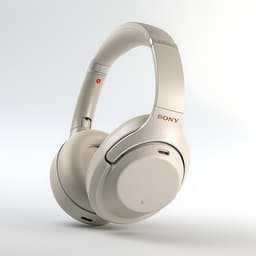
Sony
WF-1000XM5
Lost your $298 Sony WF-1000XM5 earbuds? Sony's app only works when connected. EarBuddy detects the passive BLE signal to help you find them.
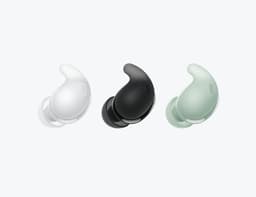
Sony
LinkBuds S
Lost your Sony LinkBuds S? Sony has no find feature for these earbuds. EarBuddy's Bluetooth scanner detects their signal to guide you right to them.
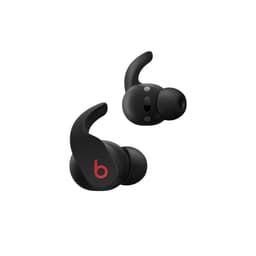
Beats
Fit Pro
Lost your Beats Fit Pro? Find My only shows last location. EarBuddy gives you real-time Bluetooth scanning to physically track them down.