
My Earbuds Aren’t Showing in Find My—How Can I Find Them?
Earbuds missing from Find My? Check which locating service they support, what a map pin means, and when an iPhone Bluetooth finder can help.

If your earbuds aren’t showing in Apple’s Find My, first check whether your exact model supports it. If it doesn’t, use the manufacturer’s locating service if one is available and was set up before the loss. Otherwise, an iPhone Bluetooth Low Energy scanner may help you detect them nearby, provided they are powered on and broadcasting a detectable signal. These are different locating methods: a missing Find My entry does not automatically mean your earbuds are impossible to find.
Does “Find My Buds” Mean Apple’s Find My?
Searching for “find my buds” or “find my earbuds” can lead to three different things: Apple’s Find My app, a brand’s own finding feature, or a separate Bluetooth finder. They are not interchangeable. Pairing earbuds with an iPhone for music does not automatically add them to Apple’s Find My network.
Before choosing a method, check these details:
- Exact model: Look for explicit Apple Find My support in the manufacturer’s specifications or support instructions. Generic Bluetooth compatibility is not enough.
- Supported phone: A manufacturer’s locating feature may require an Android phone, a particular brand’s phone, or an account you already used.
- Finding capabilities: Check whether the feature offers a saved location, nearby detection, a sound, or network-assisted location updates. Support varies by model.
- Separate components: Finding the earbuds does not necessarily mean you can locate the charging case independently.
If Your Earbuds Support Apple’s Find My
For supported earbuds, check Find My’s Devices tab and confirm that your iPhone is signed in to the Apple Account used when you set them up. Follow the model’s official setup requirements, including any Find My settings that needed to be enabled. A device listed as offline is different from one that is completely absent: offline means there is an entry, but a current location may not be available.
If supported earbuds are missing from the list, check whether they were set up using a different account or phone. You generally cannot enroll already-lost earbuds remotely just by entering their name or serial number. Do not remove an existing device entry or reset account settings as a speculative fix; you could lose access to useful saved information.
If They Use a Manufacturer’s Locating Service
Open the official app or service recommended for your model, rather than expecting every earbud brand to appear in Apple’s app. Some services record where your phone last connected to the earbuds. Others support location updates through a compatible finding network. A companion app that changes sound settings does not necessarily include either feature.
Check the service’s requirements before installing anything. If locating required prior registration, permissions, or a compatible phone, installing the app after the loss will not recreate that history. An iPhone version of a brand’s app may also lack finding features available on other phones. Use the supported account and platform if you already had them configured.
Is the Map Showing a Saved Location or a Current Detection?
An earbuds location finder can show several kinds of information. Read the label and timestamp:
- Last connected or last seen: A historical observation. It may mark where your phone was when contact ended, not the earbuds’ current position.
- Network location update: An observation reported through a supported finding network. Its usefulness depends on how recently the device was detected.
- Live nearby detection: Your phone is receiving a signal now. This can help narrow a local search, but does not necessarily provide geographic coordinates.
Choose your next method based on that distinction. A saved pin can help you decide which building to return to. Nearby detection can help once you are within receiving range. Neither a stale timestamp nor a map marker proves the earbuds are still there, and a signal-strength display is not a live street map.
When an iPhone BLE Earbuds Finder Can Help
A BLE scanner is useful when you think the earbuds are nearby but have no usable manufacturer finding option. It looks for Bluetooth Low Energy advertisements that your iPhone can receive. This is separate from checking the list of devices connected for audio. Earbuds can be disconnected from music playback yet still broadcast, although not every model or operating state does.
EarBuddy can identify detected devices by brand and provide a direction compass, smoothed signal-strength radar with hot/cold guidance, and haptic feedback that speeds up as you get closer. These tools help you narrow a nearby search; they do not turn ordinary earbuds into GPS trackers. Walls, your body, and the earbuds’ position can affect signal strength.
Does an Earphone Finder Need Prior Pairing?
A BLE scanner does not generally need prior audio pairing to detect an available advertisement. That makes scanning an option even if you never connected the earbuds to that iPhone. However, detection is not guaranteed: the earbuds must be broadcasting a signal the app can receive. A scan result may also offer limited identifying information, so brand identification alone is not proof that a nearby device is yours.
Saved location history is different. EarBuddy’s last-seen map pin records a location when a device disconnects; it cannot reconstruct a disconnection that happened before the app could record it. Likewise, official account-based finding services typically require setup beforehand. No prior pairing needed for a scan does not mean no prior setup needed for a historical map.
When No Finder Can Detect Them Nearby
EarBuddy cannot detect powered-off earbuds or earbuds with a dead battery because they are not transmitting a BLE signal. Charged earbuds may also stop advertising while asleep or inside a closed case. A charged case is not automatically detectable on its own. If nothing appears, that does not establish whether the earbuds are absent, out of range, or simply silent.
Think your earbuds are nearby and still broadcasting? Download EarBuddy from the App Store to scan on your iPhone and use signal-strength guidance to narrow the search. It cannot locate dead or powered-off earbuds.
Download EarBuddy — Free Bluetooth ScannerChoose the method that matches what is available: Apple’s Find My for supported, configured devices; the manufacturer’s service for its supported features; or a BLE scanner for detectable nearby signals. The useful question is not just “Which earbuds tracker should I download?” It is “What location information can my earbuds actually provide right now?”
Related Devices
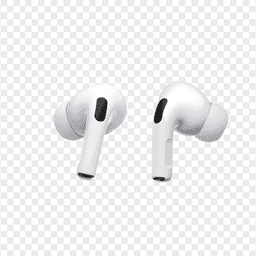
Apple
AirPods Pro 2
Lost your $249 AirPods Pro 2? Use EarBuddy to scan for their Bluetooth signal in real-time — works even without Precision Finding or U1 chip.

Samsung
Galaxy Buds 3 Pro
Lost your Samsung Galaxy Buds 3 Pro? EarBuddy scans for their BLE signal on any phone — no Samsung account or Galaxy phone required.
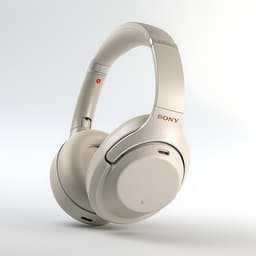
Sony
WF-1000XM5
Lost your $298 Sony WF-1000XM5 earbuds? Sony's app only works when connected. EarBuddy detects the passive BLE signal to help you find them.