
How to Find Lost Headphones With a Headphone Finder
Find lost headphones using built-in location tools, a nearby Bluetooth finder, or a physical search. Learn which method works and when to switch.

To find lost headphones, check their built-in finding service first, then use a nearby Bluetooth headphone finder if they may be within reach and are transmitting a detectable signal. If they have a dead battery or aren't broadcasting, switch to a physical search. The right method depends on what your headphones support, whether they still have power, and where you last used them.
Choose the Finding Method That Fits
Before walking around with a scanner, work out which of these situations matches yours:
- Your headphones support a built-in finding service: Open that service and check the location, timestamp, and available controls. Depending on the model and setup, you may get a last-known location, network-assisted updates, or a sound option.
- You think they're somewhere nearby: A Bluetooth finder can help if your headphones are sending a Bluetooth Low Energy signal that your phone can detect.
- They're powered off, out of battery, or not appearing in scans: Use any saved location as a starting point, then search physically. Repeated scans won't make a silent device transmit.
- They may be at another location: Check built-in location information and contact that location's lost property desk. A nearby scanner cannot search a distant building.
What a Headphone Finder Actually Detects
A Bluetooth headphone finder detects radio signals, not the headphones as a physical object. Apps such as EarBuddy scan for nearby Bluetooth Low Energy signals. A device can support Bluetooth audio without continuously broadcasting a signal that a BLE scanner can see. Detection depends on the model and its current state, including whether it's awake, connected, or stored in a case.
A result in a headphones finder app means your phone received a signal from that device nearby. It doesn't mean the app has an exact location. Signal strength gives you a clue about proximity, but walls, furniture, your body, and the headphones' orientation can all change the reading.
Check device names and brand information before following a result. A generic Bluetooth name might belong to a speaker, watch, or someone else's headphones. EarBuddy's brand identification can help you sort through nearby devices, but a matching brand alone doesn't prove you've found your missing pair.
Check Built-In Location Information First
If you've been searching for a way to “find my headphones,” start with the finding service supported by your headphones and phone. Check when the location was updated before heading there. A pin from yesterday is a search lead, not confirmation that the headphones are still there. Available features vary by model and may require setup before the loss.
Use a supported play-sound option if it is available and the headphones aren't being worn. Listen with televisions and fans turned off. If the service points to your home but can't narrow things down further, that's where a nearby Bluetooth search may help.
Scan Nearby Rooms in a Repeatable Pattern
Use a room-by-room sweep rather than wandering while watching the screen:
- Enable Bluetooth and allow the finder app's requested Bluetooth access. Start where you last definitely used the headphones.
- Pause in each room and give the scanner time to receive signals. Keep your phone at a similar height and orientation so readings are easier to compare.
- If your headphones appear, select the likely device and note where its signal is strongest. Don't chase every brief fluctuation.
- Move a few steps toward one side of the room, pause, then compare. Repeat in another direction to see whether the trend improves.
- Check adjoining rooms when the strongest reading is near a shared wall. The device could be on the other side, above you, or below you.
- Once you've narrowed the area, stop scanning and inspect it carefully. A signal cannot tell you which pocket or cushion gap contains the headphones.
Use Signal Strength as Hot-and-Cold Guidance
If an app shows RSSI in dBm, a less negative reading generally means a stronger received signal: minus 50 is stronger than minus 80. Don't convert those numbers into an exact distance. Compare trends from several nearby positions instead. Holding still briefly helps separate a useful change from a momentary jump.
EarBuddy's smoothed signal-strength radar and hot/cold guidance make those comparisons easier to follow. Its direction compass provides another search cue, and its haptic feedback speeds up as you get closer. Still, confirm progress across several positions rather than treating any single indication as proof of the headphones' exact location.
Know When to Stop Scanning
A Bluetooth scanner cannot locate headphones whose battery is dead. It also cannot guarantee detection of powered-off headphones: some models retain limited finding functions in certain states, while others stop broadcasting. Being disconnected from your phone isn't the same as being powered off, either.
For connection-state troubleshooting, read How to Find Lost Earbuds When They're Not Connected: https://earbuddyapp.com/blog/find-lost-earbuds-when-not-connected. If you suspect an empty battery, use Can You Find Bluetooth Earbuds When They're Dead?: https://earbuddyapp.com/blog/can-you-find-bluetooth-earbuds-when-dead.
After a careful sweep without a matching signal, retrace where you removed the headphones. Empty bags instead of feeling around inside them. Check headphone stands, desk edges, jacket hoods, bedding folds, and the space between a car seat and center console. Use a flashlight under furniture and move items one at a time.
A Headphone Tracker Isn't Always a Finder App
The term headphone tracker can also mean a separate location tag attached to a headphone case or carrying bag. That tag has its own battery and finding system. It may help locate the bag even when the headphones are dead, but it tracks the tag, not headphones removed from the bag. A Bluetooth finder app doesn't add that hardware or create a remote tracking network for ordinary headphones.
Think your headphones are nearby and still broadcasting? Try EarBuddy on iPhone, available on the App Store. Use its nearby BLE scan and proximity guidance to narrow your search. Its last-seen map pin when a device disconnects is a starting point, not a live location or a way to detect a dead battery.
Download EarBuddy — Free Bluetooth ScannerRelated Devices
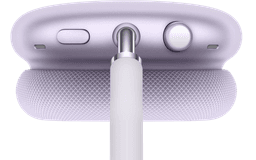
Apple
AirPods Max
Lost your $549 AirPods Max? EarBuddy detects their Bluetooth signal even in low-power Smart Case mode. Find them before someone else does.
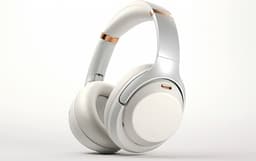
Sony
WH-1000XM5
Lost your $398 Sony WH-1000XM5 headphones? EarBuddy detects their Bluetooth signal even when Sony's app can't connect. Find them before it's too late.
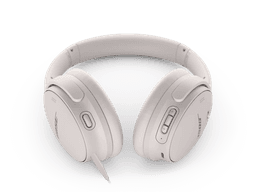
Bose
QuietComfort 45
Lost your $329 Bose QuietComfort 45 headphones? No built-in find feature. Use EarBuddy to detect their strong Bluetooth signal and track them down.