
How to Find Lost Earbuds When They’re Not Connected
Find disconnected earbuds using available location records, a careful search, and nearby Bluetooth scanning when they still broadcast a detectable signal.

Yes, you can sometimes find lost earbuds when they’re not connected. If they still have battery and are broadcasting a detectable Bluetooth Low Energy signal, a nearby scan may pick them up without pairing. If they’re asleep or switched off, they may have battery remaining but transmit nothing a scanner can detect. Start with any available Find My or manufacturer-provided location, then search that area and scan nearby if the earbuds are still broadcasting.
Disconnected Doesn’t Always Mean Undetectable
Your phone’s Bluetooth settings describe its connection to your earbuds, not everything the earbuds’ radio is doing. “Not Connected” can mean you walked out of range, another device took over the connection, or the earbuds entered a low-power state. That label alone doesn’t tell you whether a nearby scanner can detect them.
The next step depends on the earbuds’ actual state:
- Disconnected but powered on: They may still broadcast a detectable BLE signal. This is when a nearby Bluetooth scan can help, even without an audio connection.
- Asleep or inside a closed case: They may stop advertising or change how they transmit. Battery remaining does not mean they will appear in a scan.
- Switched off: Normal Bluetooth scanning won’t help if they are no longer transmitting. Any supported manufacturer finding behavior depends on the model.
- Out of battery: The dead component cannot broadcast. Use saved location information and a physical search instead.
This guide focuses on disconnected earbuds that may still have charge. If you know the battery has run out, see Can You Find Bluetooth Earbuds When They're Dead? at https://earbuddyapp.com/blog/can-you-find-bluetooth-earbuds-when-dead.
Check the Finding Service You Already Have
Open Apple Find My or the finding service your earbud manufacturer supports. Availability depends on the earbuds, your phone, your account, and whether finding was set up before they went missing. A disconnected audio connection does not necessarily prevent a supported finding network from showing an updated location.
Read the details before deciding where to search:
- Check the timestamp. A location from this morning is a starting point, not proof the earbuds are there now.
- Check what the location represents. It may be a saved connection location or a more recent finding-network report, depending on the service.
- Check which component is selected. Left earbud, right earbud, and case information may differ on supported models.
- Try the available finding controls. A sound or nearby-finding option may work if the model and its current state support it; an unavailable control does not prove the battery is dead.
If EarBuddy previously recorded a last-seen map pin when the device disconnected, check that too. Treat it as a historical clue, not live tracking. Installing an app after losing your earbuds cannot recreate a location it never recorded.
Narrow the Search Before You Scan
Start with the last place you definitely handled the earbuds, rather than the place you first noticed they were missing. Those can be different locations. Think through the moment you stopped listening: did you put them in their case, leave them loose on a table, or drop them into a pocket?
Retrace the short sequence between your last confirmed use and noticing the loss:
- Check the clothes and bag you used at that time, including pocket linings and small compartments.
- Inspect places where you changed activities: your desk, doorway, charging spot, or the seat where you took them out.
- Use a flashlight along floor edges, cushion gaps, and under furniture. Small earbuds can disappear against patterned fabric.
- If you visited a business or used shared transport, contact its lost-property service while you search locally.
Keep checked belongings separate from unchecked ones. Move loose items onto a clear surface instead of repeatedly rummaging through the same bag. This makes your search more reliable, especially if the earbuds are asleep and no wireless tool can currently detect them.
Scan Nearby on an iPhone If They’re Still Broadcasting
Once you’re near a likely location, EarBuddy on an iPhone can scan for nearby Bluetooth Low Energy signals. Pairing is not required for BLE detection. The important condition is that the earbuds are broadcasting a signal the app can detect, not that they appear as connected in your Bluetooth settings.
Use the scan as a way to narrow a physical search:
- Turn on Bluetooth and allow EarBuddy’s requested Bluetooth access.
- Scan near the last confirmed location. Device identification by brand can help you assess likely results, but a brand match alone does not prove a signal belongs to your earbuds.
- If a likely device appears, move slowly between nearby areas. Use the smoothed signal-strength radar and hot/cold guidance to compare your positions.
- Follow the direction compass alongside the signal trend. Haptic feedback speeds up as you get closer, helping you search without staring at the screen.
- Pause near stronger readings and inspect nearby objects. Walls, furniture, your body, and metal can affect the signal, so don’t treat one reading as an exact location.
Powered on does not guarantee detectable. Earbuds may have plenty of charge but stop broadcasting while asleep or docked. A missing scan result does not prove they are far away, switched off, or dead.
What If Nothing Appears?
Try another nearby position and confirm Bluetooth access is enabled, but don’t spend the whole search refreshing an empty list. Return to the saved location and your physical checklist. If the earbuds reconnect to your phone as you move around, that is useful evidence they’re nearby; check the manufacturer’s finding controls again.
Don’t unpair or reset your earbuds as a search tactic. Neither action makes a hidden earbud start transmitting, and removing it from your account may interfere with existing finding options. The useful sequence is simple: check location records, retrace your steps, scan where a detectable signal may still exist, and inspect carefully where no signal is available.
Searching nearby with an iPhone? Download EarBuddy from the App Store to scan for detectable BLE signals and use hot/cold guidance to narrow your search. It can help without pairing, but it cannot detect earbuds that are no longer broadcasting.
Download EarBuddy — Free Bluetooth ScannerRelated Devices
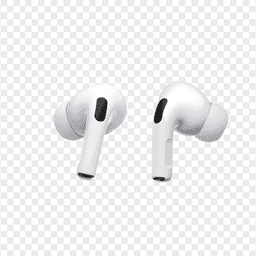
Apple
AirPods Pro 2
Lost your $249 AirPods Pro 2? Use EarBuddy to scan for their Bluetooth signal in real-time — works even without Precision Finding or U1 chip.

Samsung
Galaxy Buds 3 Pro
Lost your Samsung Galaxy Buds 3 Pro? EarBuddy scans for their BLE signal on any phone — no Samsung account or Galaxy phone required.

Sony
WF-1000XM5
Lost your $298 Sony WF-1000XM5 earbuds? Sony's app only works when connected. EarBuddy detects the passive BLE signal to help you find them.